
Embedding videos in presentations boosts engagement, improves clarity, and strengthens message delivery. Today, audiences expect dynamic slides, so mastering how to embed a video in PowerPoint is essential. With the right steps, you can quickly add smooth, interactive visuals that make your presentation more impactful and professional.
Table of Contents
Why Knowing How to Embed a Video in PowerPoint Matters
When you embed videos correctly, your slides become more memorable. Moreover, the audience stays engaged because visuals simplify complex ideas. As you use multimedia wisely, you create a more polished presentation. Therefore, learning how to embed a video in PowerPoint helps you deliver clearer and stronger messages.
Understanding the Basics Before You Embed a Video in PowerPoint
Before you start, ensure your video file format matches PowerPoint requirements. When the file is compatible, embedding becomes quick and smooth. Additionally, organizing video folders helps you avoid broken media issues. Consequently, your entire presentation performs well across different devices without unexpected errors.
How to Embed a Video in PowerPoint: Step-by-Step Instructions
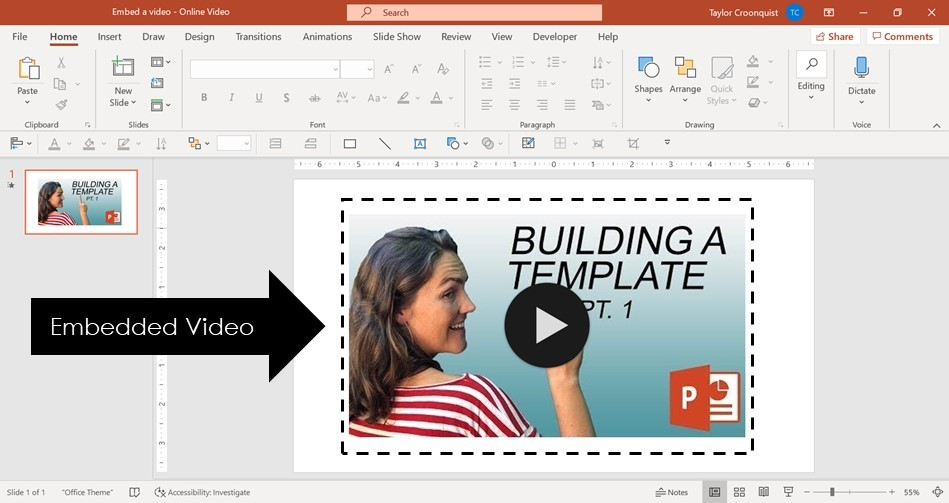
When you follow a simple process, you can embed a video in any slide effortlessly. Below are the straightforward steps to guide you. Because clarity matters, each step is designed to keep the presentation stable while ensuring the video plays without interruptions throughout your slideshow.
Step 1: Open Your PowerPoint Presentation
To begin, open PowerPoint and select the slide where you want to embed video content. Since placement influences flow, choose a location that supports your message. As you plan the structure, your audience quickly understands the transition from visuals to information smoothly and professionally.
Step 2: Go to the Insert Tab
Next, move to the Insert tab placed in the top menu. Because this tab holds all media tools, it simplifies your workflow. Once you access the options, the process becomes clear. With one click, you reach the section where PowerPoint allows direct video input.
Step 3: Choose the Video Source
After entering the Insert menu, select Video, then choose “This Device.” As you explore your folders, pick the video file you want. Since proper file selection prevents issues later, confirm the video opens on your computer. Therefore, your presentation stays functional and error-free.
Step 4: Embed the Video Directly into the Slide
When you select the video, PowerPoint places it on your slide immediately. Because this action embeds the file, your presentation no longer relies on external video paths. As a result, the video moves with your PowerPoint, ensuring smooth playback on every device you use.
Step 5: Adjust Video Size and Position
Once the video appears, resize or reposition it to match your slide structure. Since layout clarity matters, balanced sizing improves viewer focus. Additionally, proper placement helps you guide attention where needed. Therefore, your slide remains organized, visually appealing, and easy to understand.
Step 6: Customize Playback Settings
With the video selected, open the Playback tab. Here, choose options like autoplay, loop, or start-on-click. Because customization helps enhance flow, these settings maintain smooth memorability. As you adjust playback behavior, your message becomes clearer and more engaging for your audience.
Best Practices for Embedding a Video in PowerPoint
Mastering how to embed a video in PowerPoint involves more than adding a file. When you follow best practices, your slides perform better. As you strengthen quality, your presentation gains professionalism, reliability, and polished communication that keeps people focused and involved.
Use High-Quality Videos
Select videos with clear visuals and audio. Because poor quality distracts viewers, you risk losing impact. When your content is sharp, your message stays strong. As a result, your audience connects with your ideas confidently and understands every point you highlight.
Compress Videos for Better Performance
Although high-quality videos look great, large files slow performance. Therefore, compressing videos keeps presentations fast. Since smooth playback matters, optimized file sizes prevent lag. As you reduce unnecessary data, your slideshow delivers strong, consistent performance without interruptions or stuttering.
Maintain Consistent Slide Design
Even when using videos, maintain visual harmony. As you match fonts, colors, and layout, your slides feel unified. Because consistency builds trust, your message becomes easier to follow. Therefore, embedding videos supports your story instead of overwhelming your structure.
Test Playback on Multiple Devices
Before presenting, test your embedded video on the device you will use. Because compatibility varies, confirming smooth playback prevents embarrassment. As you prepare properly, your presentation becomes reliable. Therefore, you stay confident knowing everything works as expected.
Troubleshooting Common Problems When Embedding a Video in PowerPoint
Sometimes videos may not play as expected. Since issues occur for various reasons, knowing how to fix them ensures stress-free presentations. As you understand common problems, you prevent interruptions and maintain professional delivery throughout your entire presentation.
Video Not Playing
When the video fails to play, check its format first. Because unsupported formats cause playback errors, converting the file often helps. Also, ensure PowerPoint media support is enabled. As you correct the issue, your slide becomes functional again.
Audio Not Working
If the video plays silently, confirm system volume settings. Since muted audio disrupts flow, adjust sound levels. Additionally, check whether the original video contains audio. As you test the file, you quickly identify the cause and restore proper playback.
Video Not Embedded Properly
Sometimes users link instead of embed files accidentally. Because linked files break when moved, embed the video again using the correct method. As you reinsert it, your slide becomes stable. Therefore, you avoid missing media during your presentation.
Advanced Features to Enhance Embedded Videos in PowerPoint
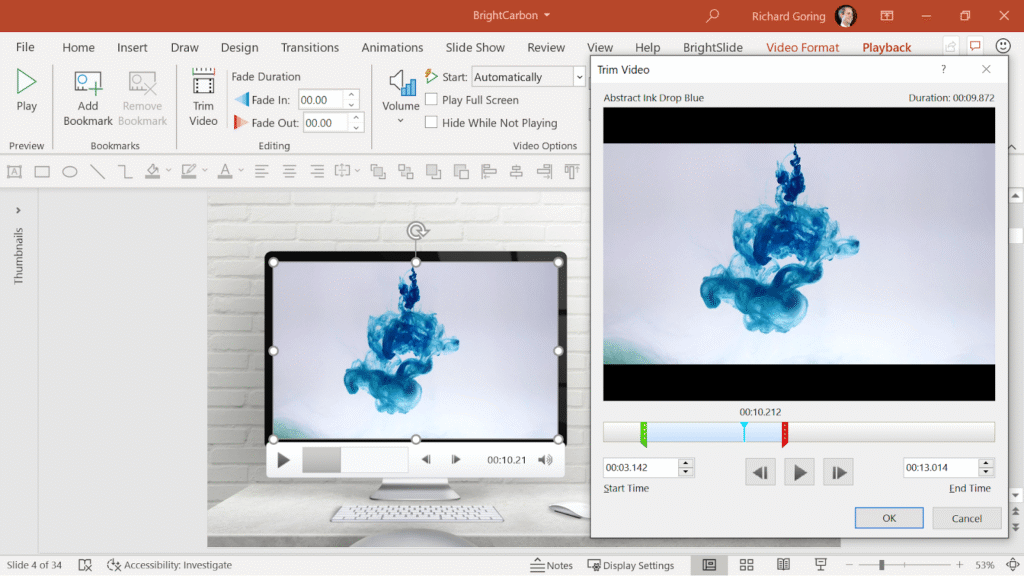
When you want professional results, use advanced video tools. Because PowerPoint offers powerful editing features, your content becomes richer and more interactive. As you apply enhancements, your embedded video supports your message with stronger clarity and improved audience engagement.
Trim Video Clips
PowerPoint lets you trim unnecessary parts. Since shorter videos maintain attention, trimming helps you deliver focused messages. As you refine the clip, you strengthen clarity and highlight only essential moments.
Add Captions or Subtitles
Adding captions improves accessibility. Because audiences vary, captions support understanding for everyone. As you include text overlays, your presentation becomes inclusive and more effective.
Apply Video Styles
PowerPoint includes frames, borders, and effects. Since these tools enhance visual design, your video blends with slide themes. As you customize styles, your content appears polished and cohesive.
Conclusion
When you learn how to embed a video in PowerPoint, you transform simple slides into powerful presentations. Since multimedia boosts clarity and engagement, your message becomes stronger. Therefore, start applying these steps today and elevate your next presentation.
FAQs
1. How do I embed a video in PowerPoint without errors?
Choose a compatible video format, embed directly using Insert → Video, and test playback.
2. Can I embed YouTube videos in PowerPoint?
Yes, using the online video option, but it requires a stable internet connection.
3. Why is my embedded video lagging?
Large file sizes cause lag. Compress your video for smoother playback.
4. Will my embedded video play on another computer?
Yes, as long as the file is fully embedded and not linked.
5. Can I edit videos inside PowerPoint?
PowerPoint allows trimming, fading, playback control, captions, and visual effects.